




Use this guide to connect your Gorgias account to Composio. The connection starts in Gorgias and is completed in Composio.
Connect Gorgias with Composio-managed OAuth
Use this path to connect your Gorgias account without creating your own Gorgias OAuth app.
NOTE: Gorgias starts the authorization flow. You do not need a Gorgias Partner Portal app or your own OAuth client credentials for this path.
Step 1: Open the Gorgias App Store
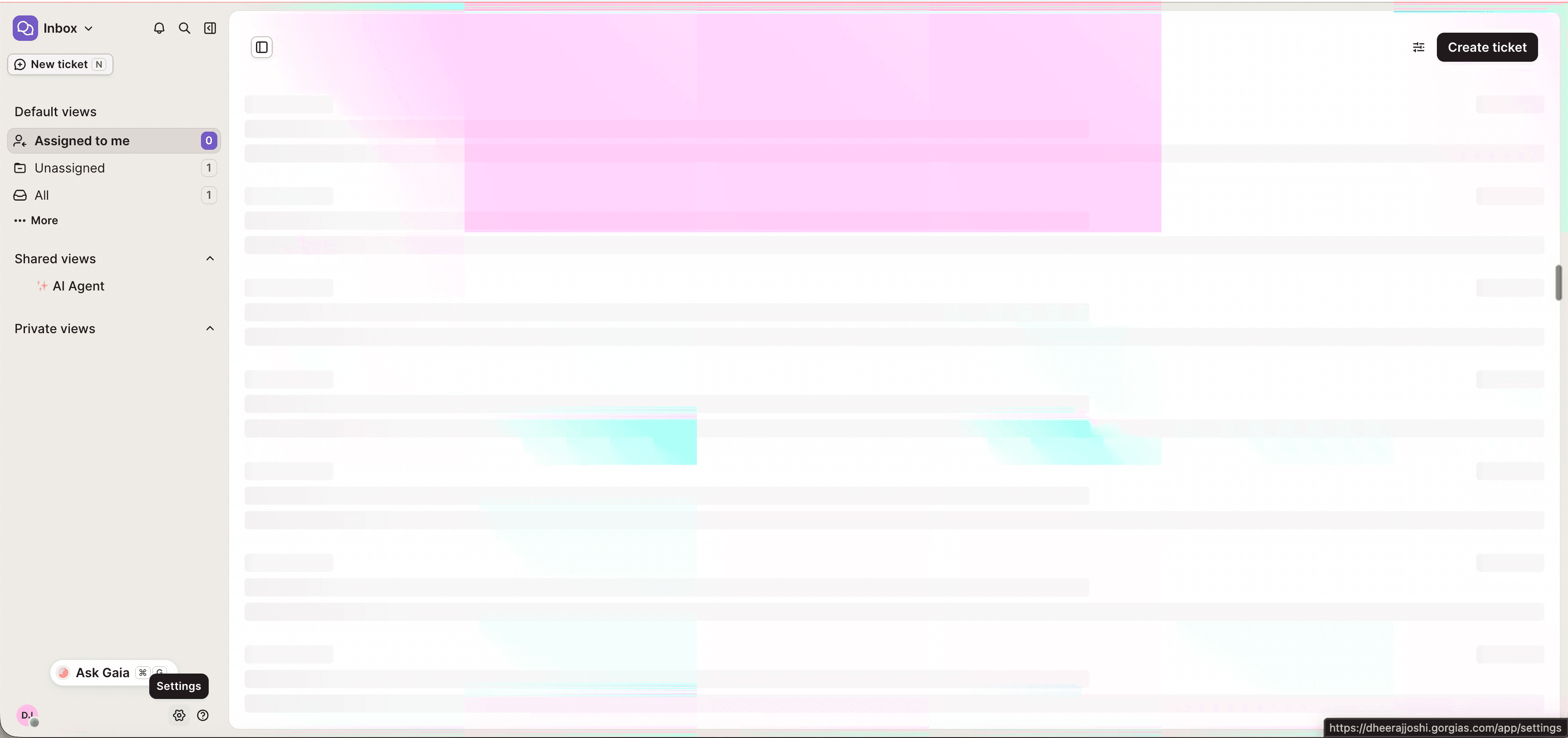
In Gorgias, go to Settings → App Store → All Apps.
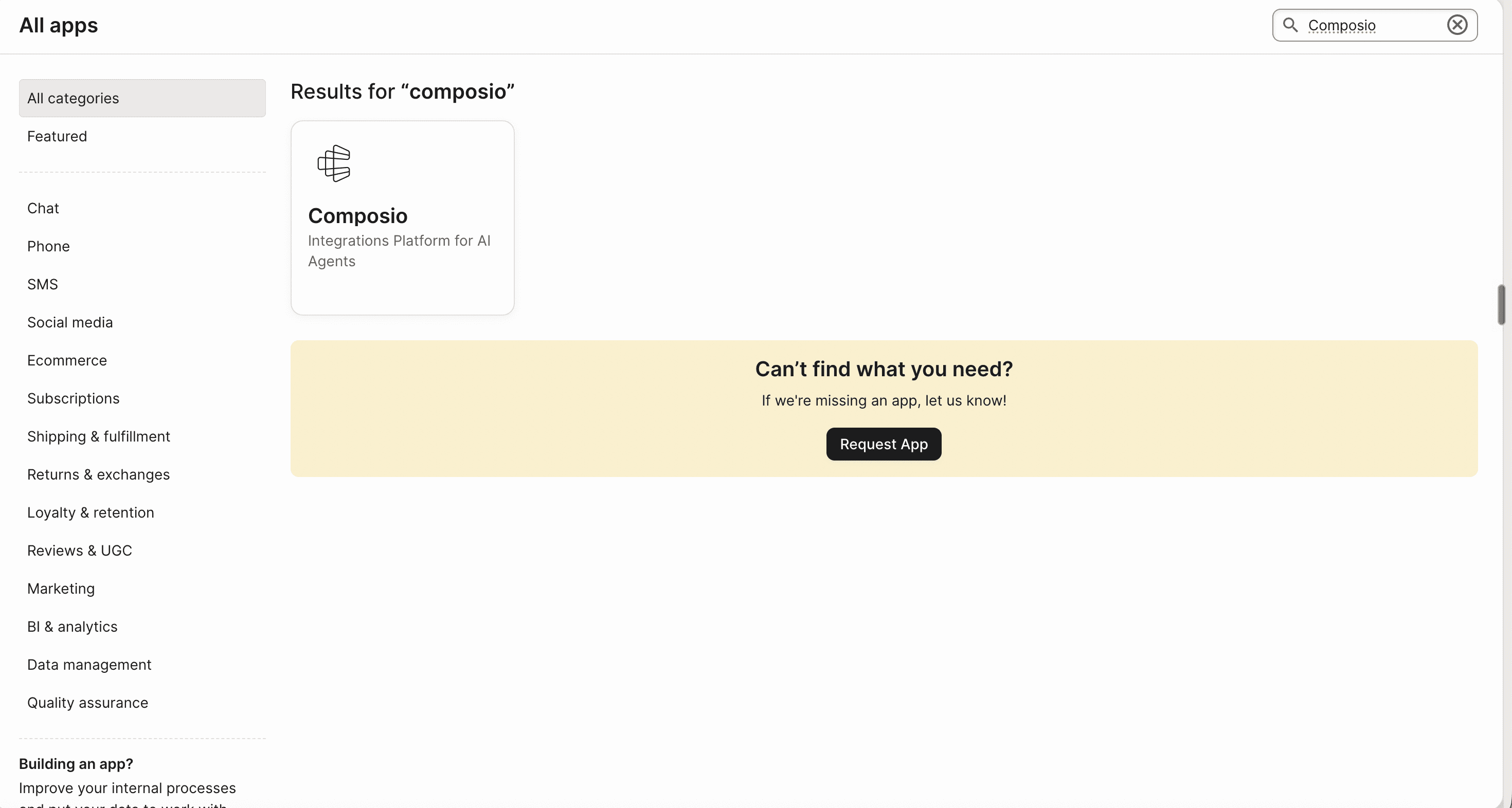
Search for Composio, then click Composio.
Step 2: Authorize Composio
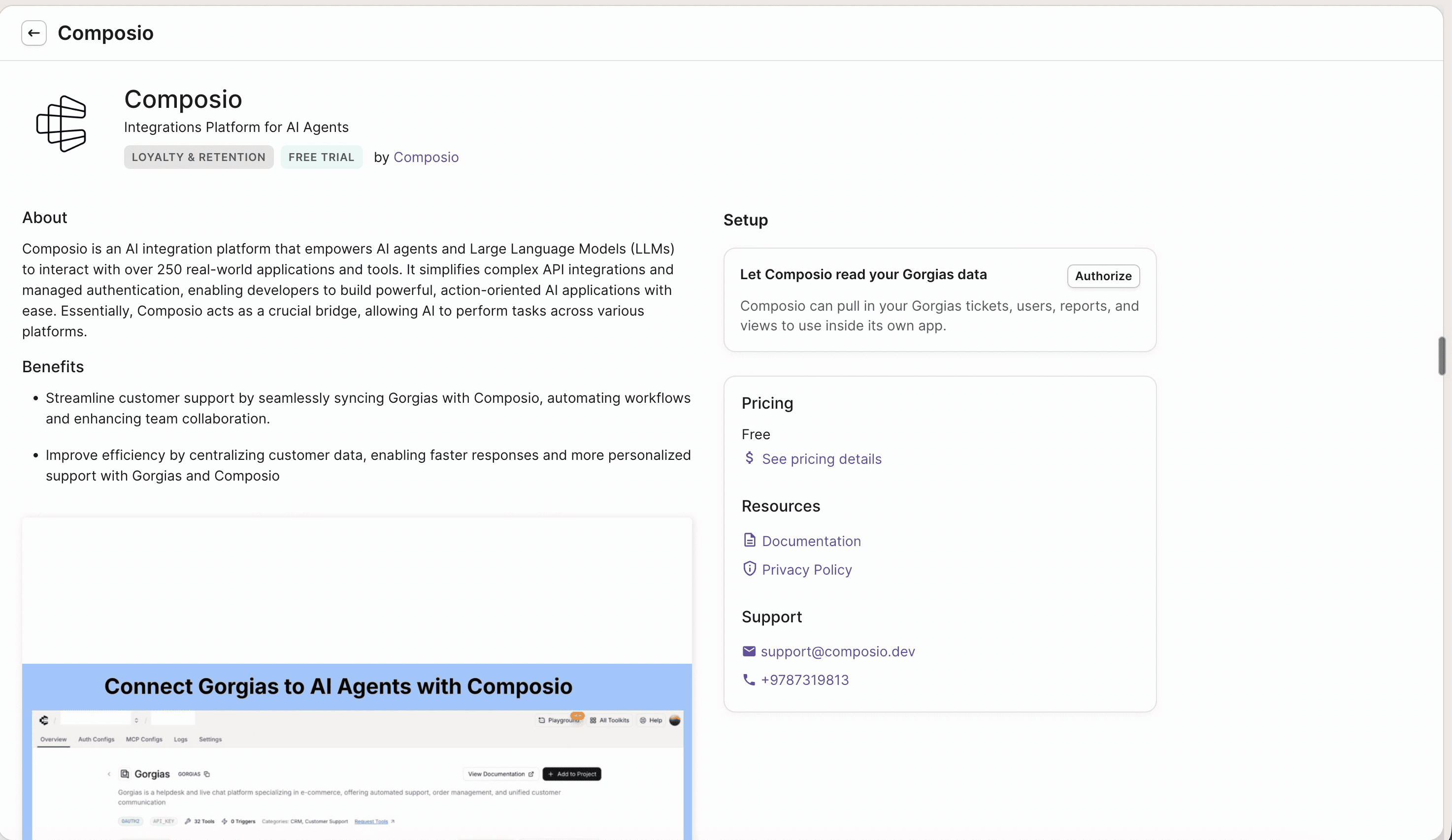
Click Authorize.
Step 3: Open the Toolkits page
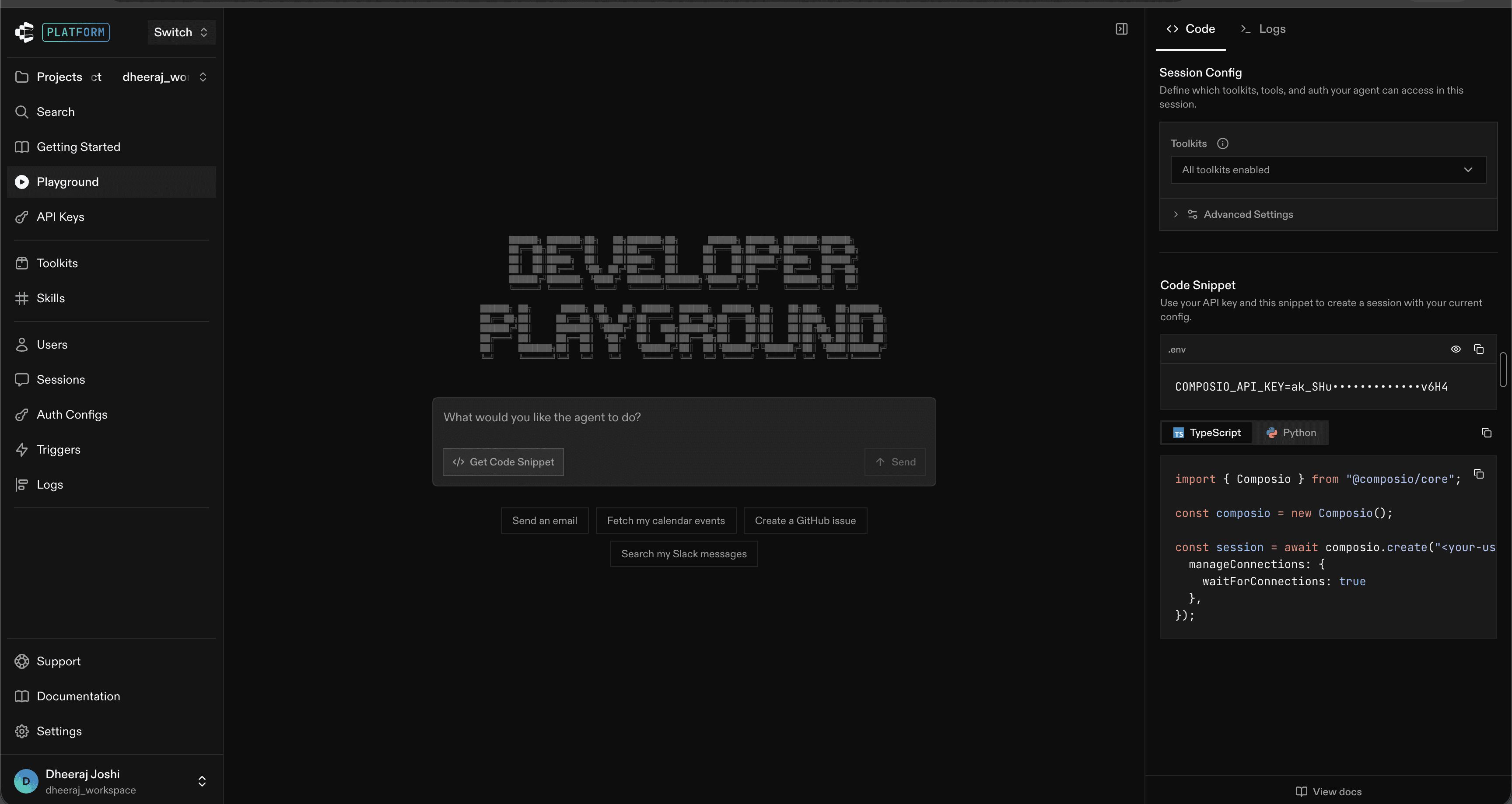
Open the Composio Dashboard.
Select Platform, choose the project you want to use, then open Toolkits from the sidebar.
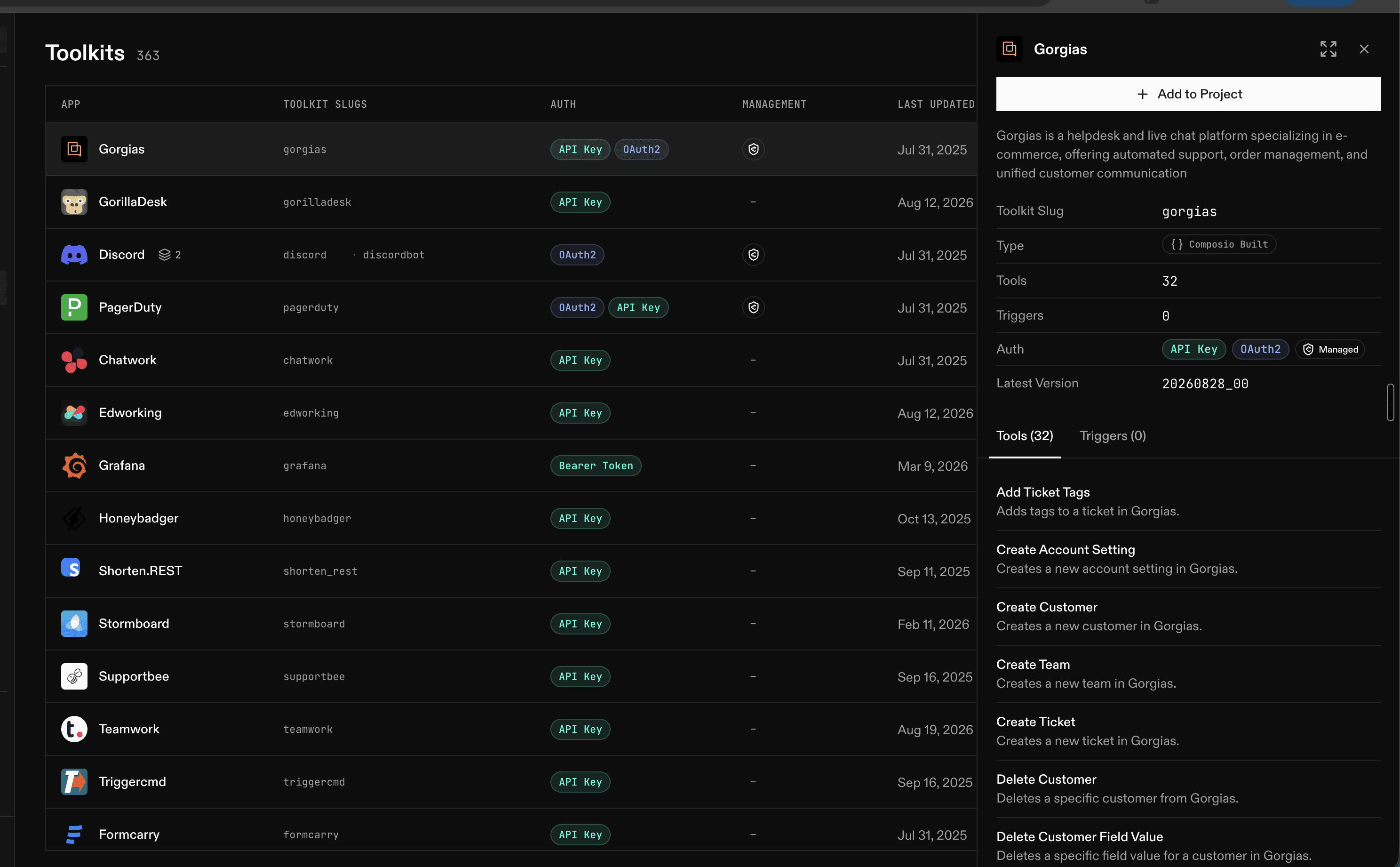
Step 4: Add Gorgias to your project
Search for Gorgias, then click Add to Project.
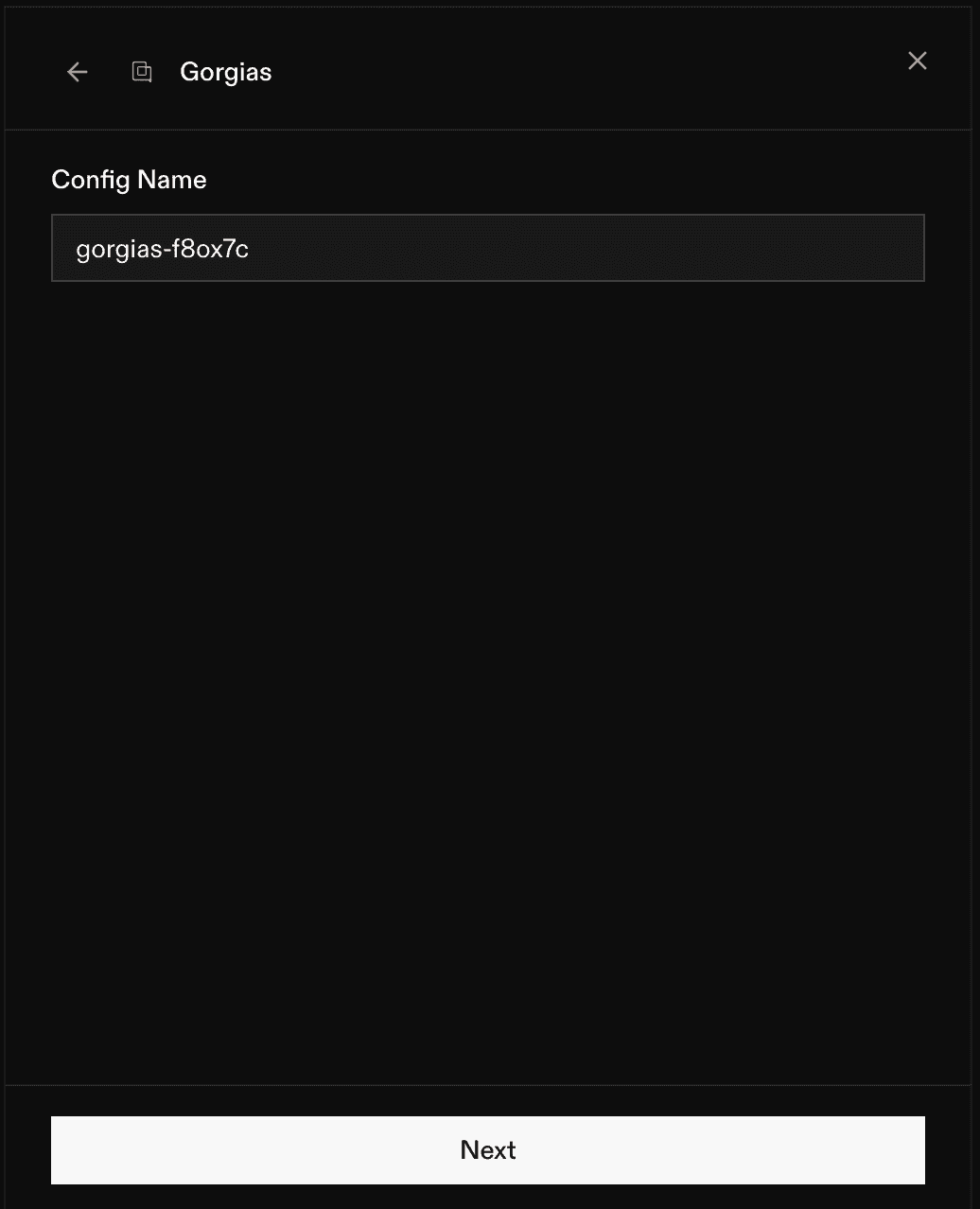
Step 5: Create a Gorgias auth config
Enter a name for the auth config, then click Next.
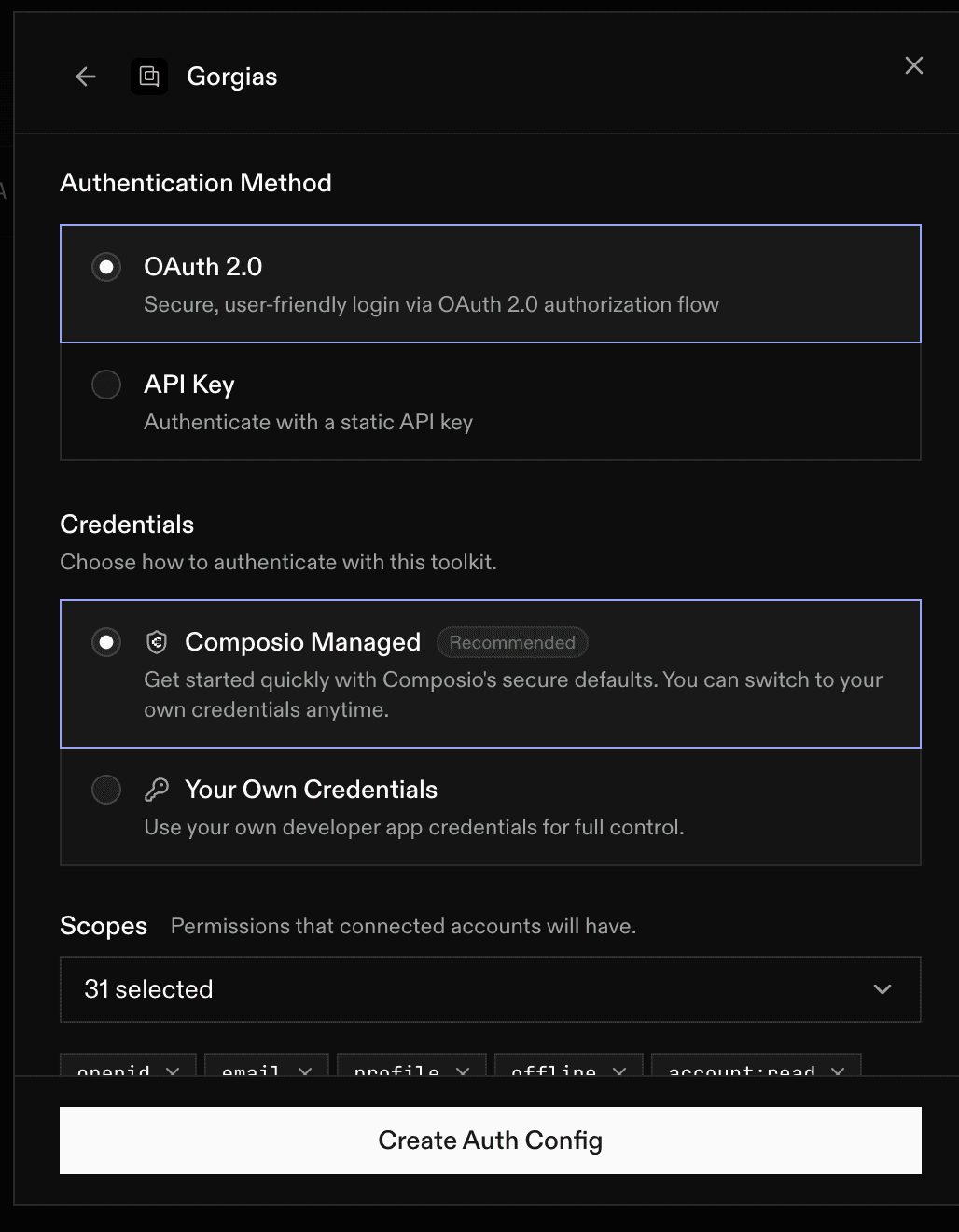
Choose OAuth 2.0, then select Composio Managed.
Click Create Gorgias Auth Config.
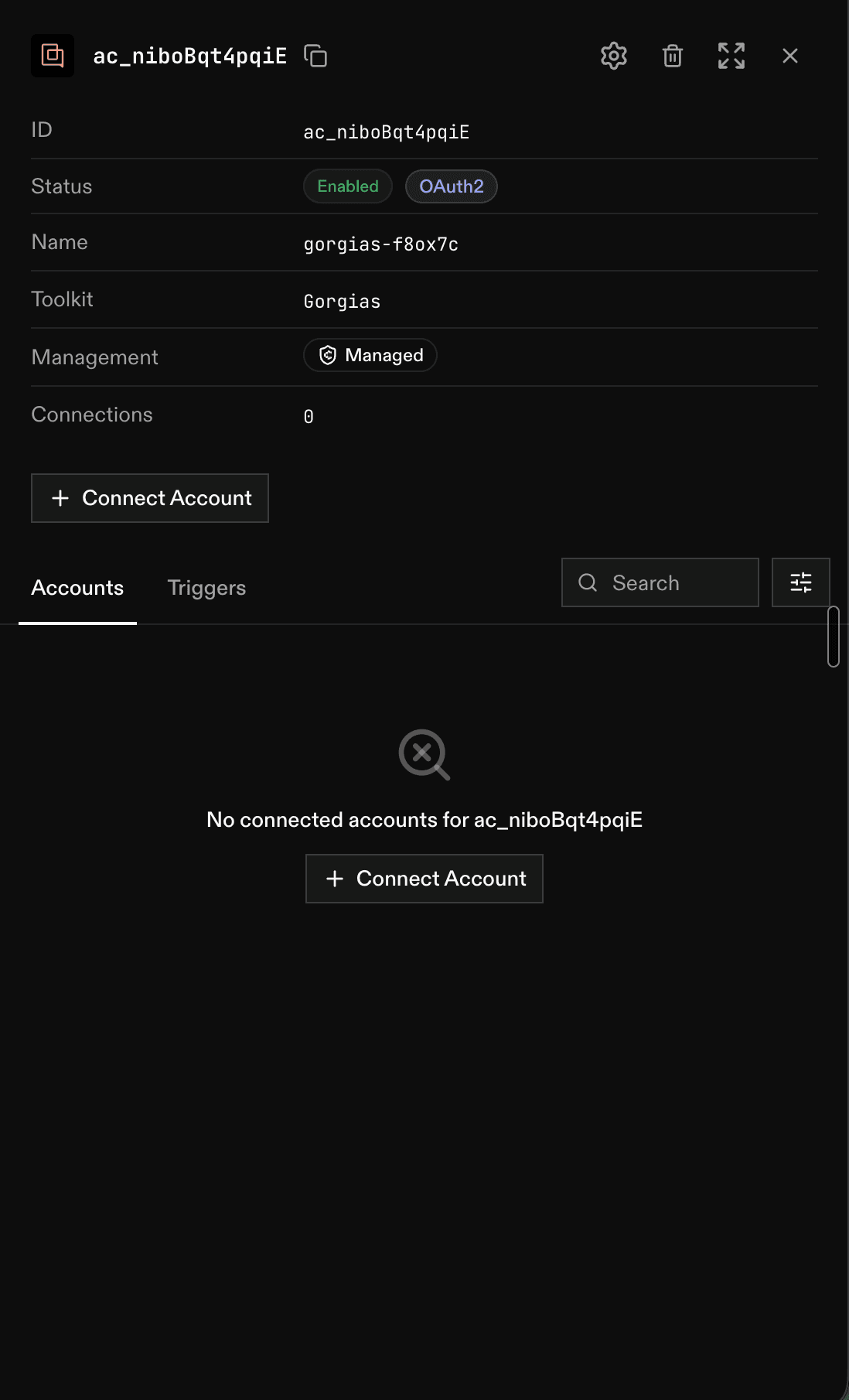
Step 6: Connect your Gorgias account
Open the new auth config and click Connect Account.
Enter your Gorgias subdomain. For acme.gorgias.com, enter acme.
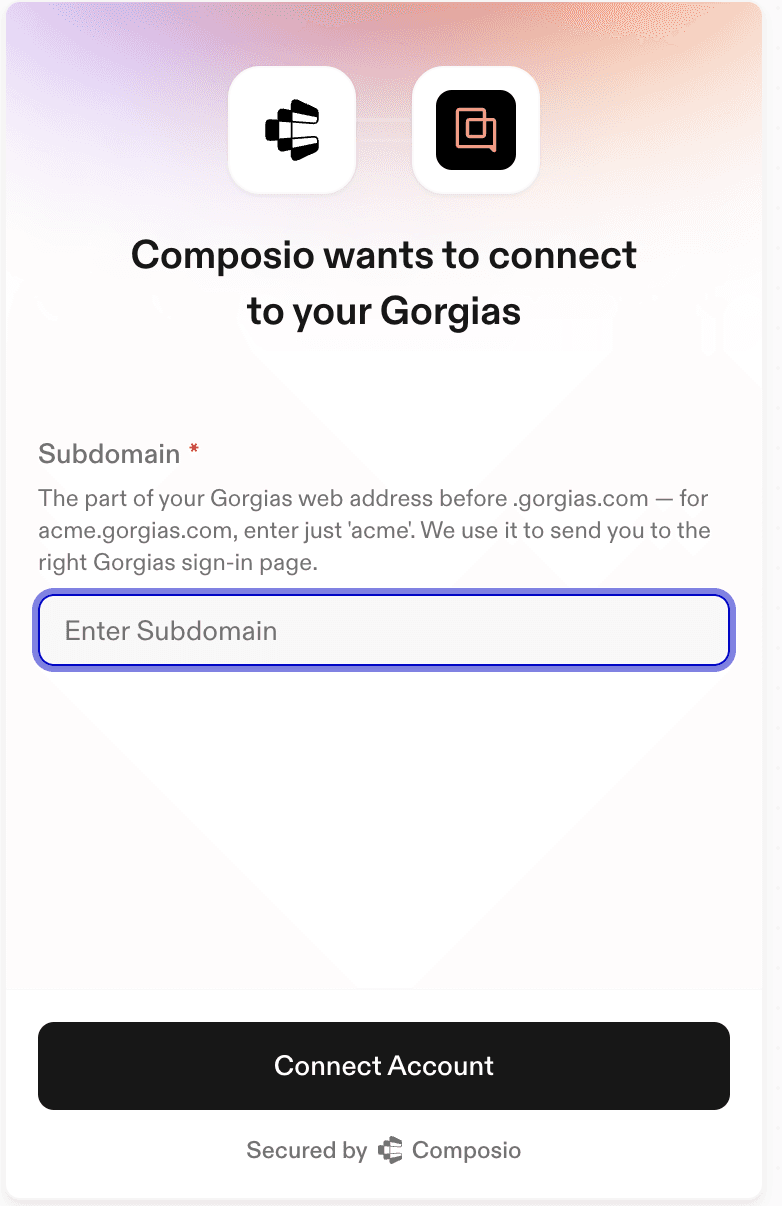
Step 7: Authorize and confirm the connection
Review the Gorgias permission screen and click Authorize.
Return to Composio and confirm the connection is Active.

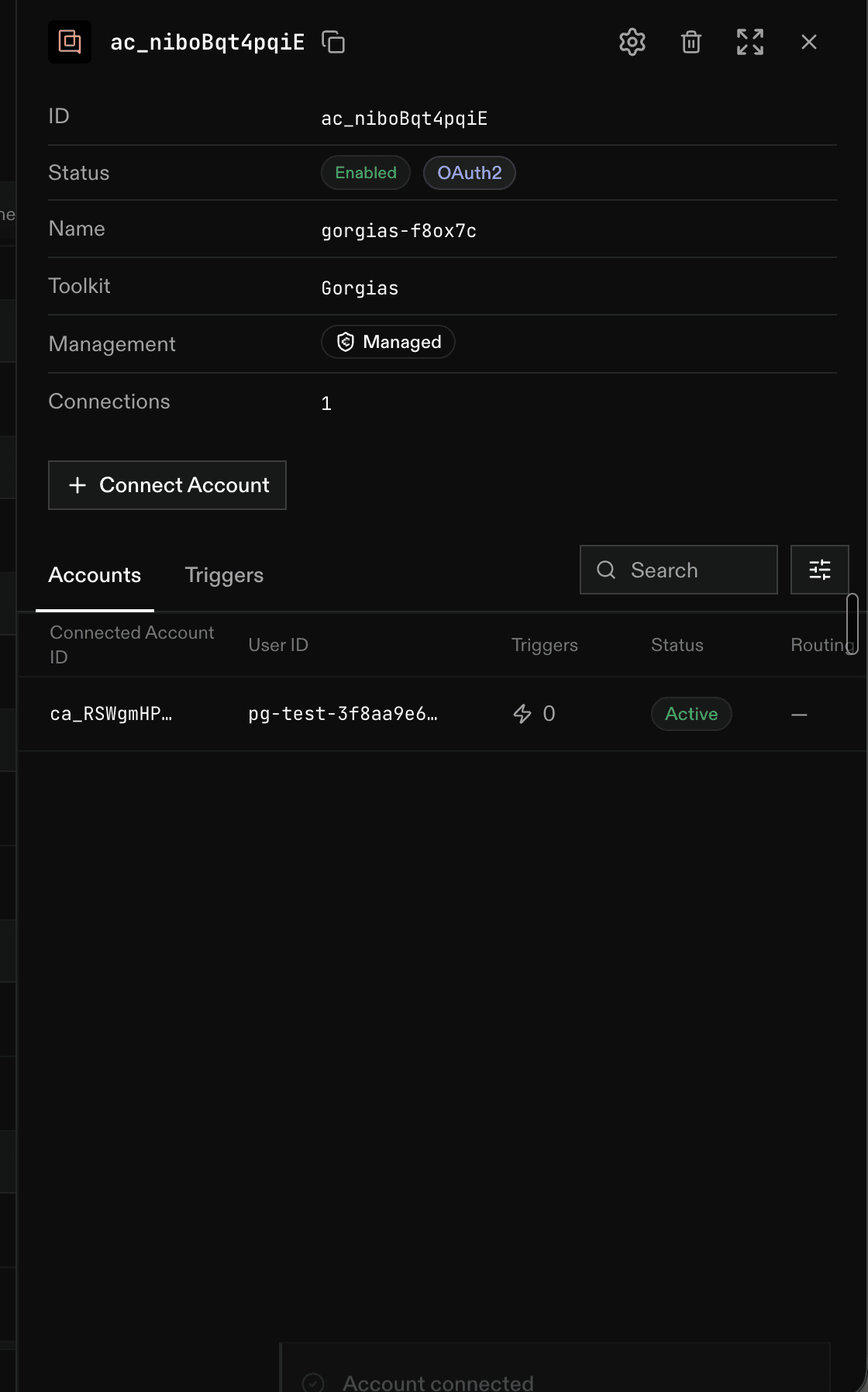
NOTE: Use the Advanced section below only if your organization must use its own Gorgias OAuth client credentials.
Complete setup in Composio
After authorizing the Composio app in Gorgias, finish the connection in Composio.
Step 1: Add Gorgias to your project
Open the Composio Dashboard.
Select Platform, choose the project you want to use, then open Toolkits from the sidebar.
Search for Gorgias, then click Add to Project.
Step 2: Create the managed auth config
Enter a name for the auth config, then click Next.
Choose OAuth 2.0, select Composio Managed, then click Create Gorgias Auth Config.
Step 3: Connect and authorize Gorgias
Open the new auth config and click Connect Account.
Enter your Gorgias subdomain, then complete the authorization.
Return to Composio and confirm the connection is Active.
Advanced: use your own Gorgias OAuth app
Use this path only if you need to connect with your own OAuth client credentials instead of Composio-managed auth.
NOTE: This requires a Gorgias Partner Portal account at partners.gorgias.com — which is separate from your normal Gorgias helpdesk login. Creating an app also requires uploading an app icon. If you already have a Gorgias app with a Client ID and Client Secret, skip ahead to “Step 5”.
Step 1: Create a Gorgias App
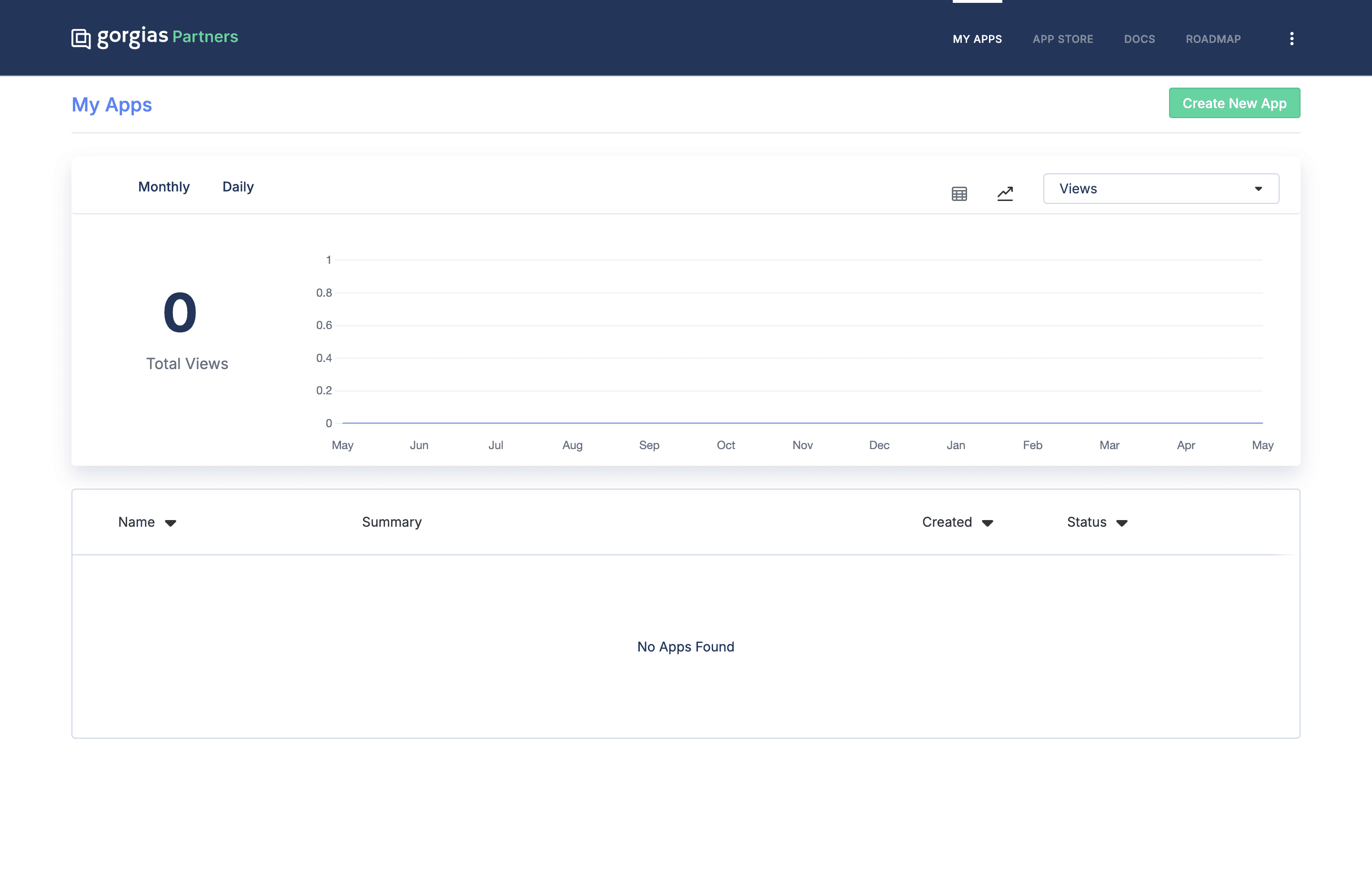
Go to the Gorgias Partner Portal and click Create New App.
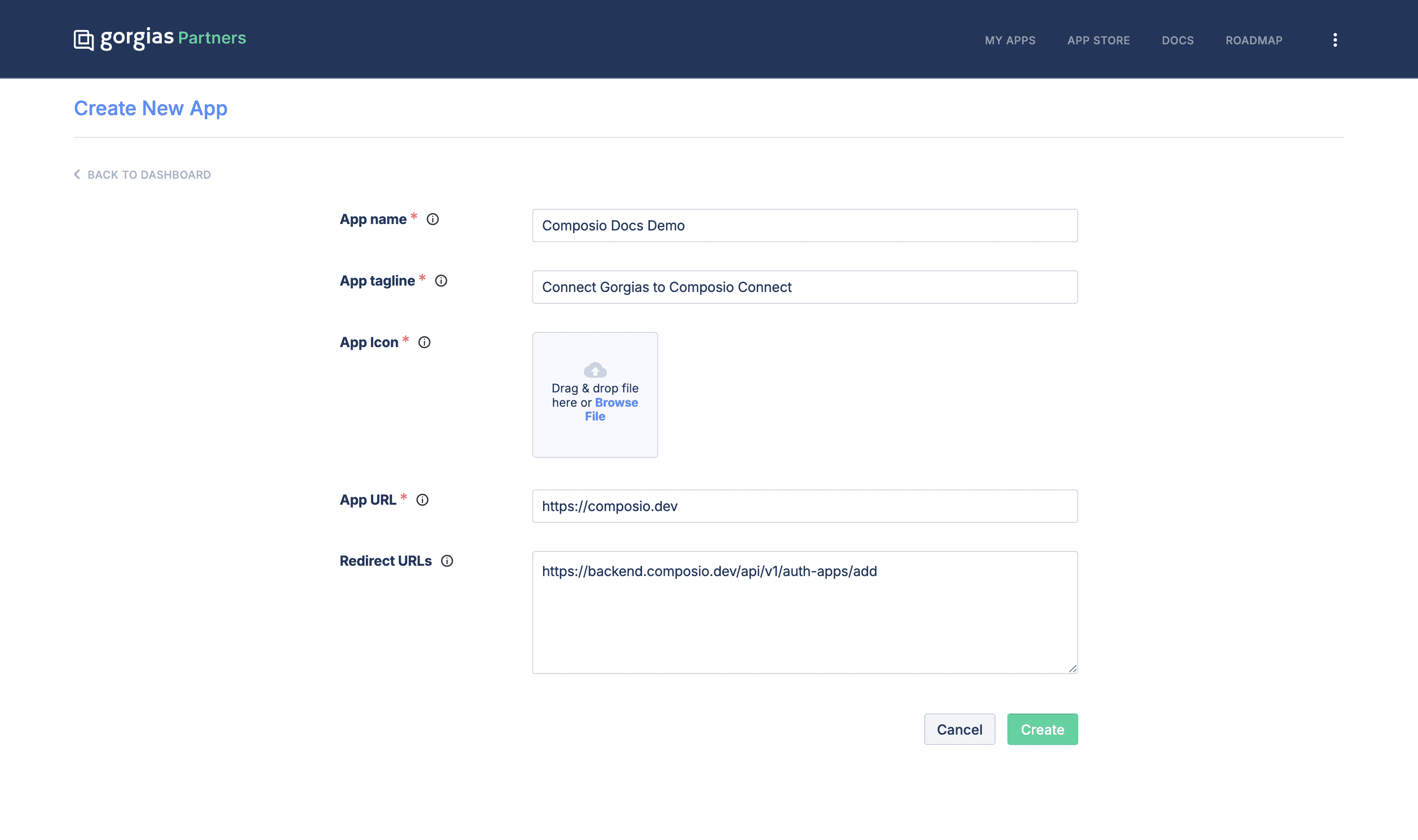
Enter your App name (e.g.,
Composio Integration), an App tagline, an App icon (required), and your App URL.
Step 2: Configure the Redirect URL
On the create app form, find the Redirect URLs field and paste Composio’s callback URL:
https://backend.composio.dev/api/v1/auth-apps/addClick Create to save your app.
Step 3: Add OAuth Scopes
Select the scopes shown in the Gorgias and Composio custom-auth forms that match your use case.
Step 4: Get Your OAuth Credentials
Once you’ve created your Gorgias app, you can find your OAuth credentials on the app’s page:
Open your app in the Partner Portal.
Locate the Client ID and Client Secret.
Copy the Client ID and Client Secret, as you’ll need them for Composio.
Step 5: Create the Auth Config with your own app
In the Composio Dashboard, click Create Auth Config and select Gorgias, then fill in:
Authentication type → OAuth2
Check “Use your own developer authentication”
Client ID → from your Gorgias app
Client Secret → from your Gorgias app
Scopes → select the scopes shown in the Gorgias and Composio custom-auth forms that match your use case.
NOTE: Composio shows a redirect URL in this form — it must match the one you added to your Gorgias app in Step 2 (
https://backend.composio.dev/api/v1/auth-apps/add). This is the callback Composio uses to receive the OAuth response.
Click Create Gorgias Auth Config, then click “Connect Account” and enter your Gorgias subdomain (as shown above) to authorize.
Base URL for Gorgias API
All Gorgias API calls are made via:
https://{subdomain}.gorgias.com/api/That’s it! Your Gorgias + Composio OAuth integration is ready.
Copy the Auth Config ID only if your Composio SDK or API integration requires it.