


OpenAI introduced the Agents SDK in March, a framework for building multi-agent workflows. The SDK provides a way to define agent behaviour, connect to external tools, and manage the action flow. Recently, they have also extended the support for MCP. Tools are exposed through MCP (Model Context Protocol), a standard interface that lets agents discover and call functions from any compatible server.
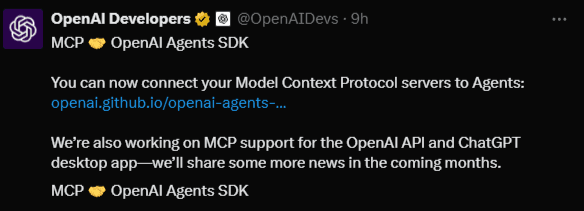
This article explains how to use the OpenAI agents SDK to build agents and connect remote MCP servers from Composio.
What is OpenAI Agents SDK?
The OpenAI Agents SDK is a framework introduced by OpenAI in March 2025. It is built to help developers create agents that use large language models to solve tasks by thinking through goals and using tools. The SDK is open source and designed to be modular, so developers can customise agent behaviour as needed.
This SDK was released as part of Openai’s broader effort to support agent-based workflows.
The Agents SDK includes built-in support for agent memory, streaming output, tool retries, and tracing. It also supports function calling with structured inputs and outputs. These features allow developers to build reliable, debuggable, and suitable agents for real applications.
Agents built with the SDK can be used in local scripts, deployed as services, or integrated into product features.
Composio MCP
Composio MCP is a fully managed platform built on top of this standard. It offers access to over 100 tools, each exposed as an individual MCP server with built-in schemas, execution endpoints, and secure authentication. These tools are ready to be used by any agent who understands the MCP format.
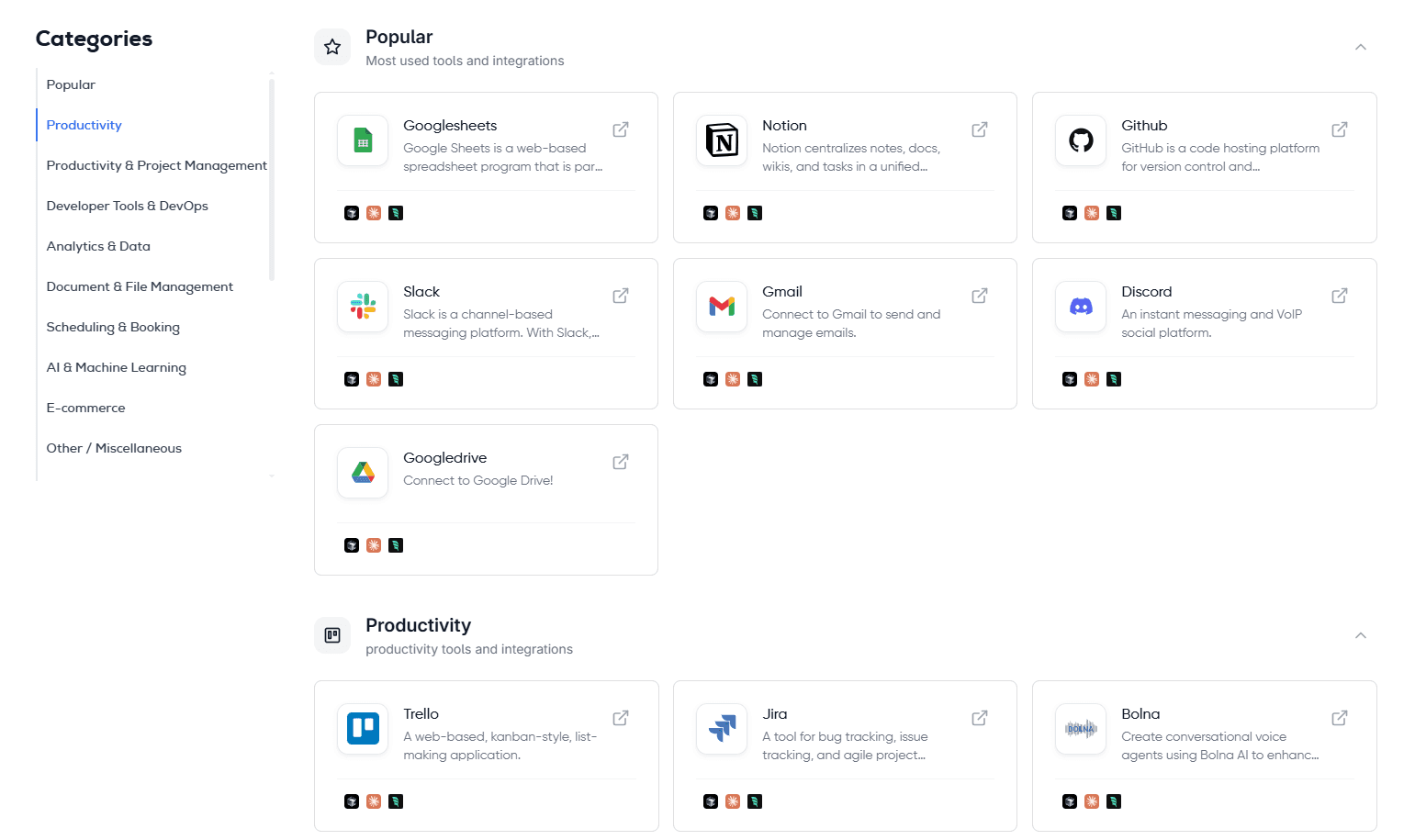
Composio MCP Servers
Composio hosts and maintains these tools and handles all the complex parts of integration, OAuth flows, schema updates, version control, and monitoring. Developers don’t need to manually deal with external APIS, handle retries, or format payloads. This lets you focus purely on agent logic while working with consistent, reliable, and production-ready tools.
Why Use Composio MCP
Access 100+ MCP servers instantly: Tools are pre-integrated, MCP-compliant, and immediately available.
No API Wrapping Needed: Composio handles tool setup, input validation, response formatting, and error handling.
Secure by Default: Authentication, authorisation, and token handling are built in and fully managed.
Hosted, Versioned, and Monitored: Tools are kept up to date, performance-tracked, and ready for production use.
Designed for Agent Frameworks: Fully compatible with the OpenAI Agents SDK and other agent runtimes that support MCP.
🛠️ How to Build MCP Agents Using the OpenAI Agents SDK
An MCP agent is an AI agent that can use tools exposed through MCP-compliant servers. These tools follow a standard format, making them accessible to any compatible agent.
Using the OpenAI Agents SDK, you can register these servers manually and let the agent discover and use the tools at runtime. Below are the steps to build and run such an agent from scratch.
Step 1: Prepare Your Environment
You’ll need the following:
Python 3.8 or higher
An OpenAI API key
Step 2: Set Up Your Project
Create a virtual environment
macOS / Linux:
python3 -m venv env
source env/bin/activate
Windows:
python -m venv env
.\env\Scripts\activate
Install required packages
pip install openai-agents python-dotenvStep 3: Add Your API Key
Create a .env file in your project root:
OPENAI_API_KEY=sk-...Load this in your script dotenv to authenticate with OpenAI.
Step 4: Connect Tools and Get MCP Server URLS
To make external tools accessible to your agent, you must set them up using the Composio CLI. This process creates MCP-compliant servers for each tool.
Step 4.1: Get Your MCP Server URL
Once your tool is connected:
Go to mcp.composio.dev
Navigate to the tool you want to connect to
Copy the MCP server URL (it will look like
https://mcp.composio.dev/<tool>/<instance-id>)
Step 5: Build and Run the Agent
Create a file called main.py and use the following structure:
import asyncio
import os
from dotenv import load_dotenv
import openai
from agents import Agent, Runner
from agents.mcp import MCPServerSse

# Load environment
load_dotenv()

# Set API key
openai.api_key = os.getenv("OPENAI_API_KEY")

# MCP tool URL (replace with actual URL you got from step 4.3)
TOOL_URL = "https://mcp.composio.dev/<tool-name>/<instance-id>"

async def main():
    mcp_server = MCPServerSse({"url": TOOL_URL})

    try:
        await mcp_server.connect()

        # Create an agent and register the connected tool
        # ✅ Replace "MCP Agent" with a descriptive name if desired
        # ✅ Update instructions to guide the agent's behavior
        agent = Agent(
            name="MCP Agent",
            instructions="You help the user complete tasks using the connected tool.",
            mcp_servers=[mcp_server]
        )

        # 🔁 Replace this task with your actual prompt or goal
        task = "Perform a task using the connected tool."

        result = await Runner.run(agent, task)

        print(result.final_output)

    finally:
        await mcp_server.cleanup()

# Run the async main function
if __name__ == "__main__":
    asyncio.run(main())
Execution Examples: Using MCP Agents with Real Tools
The following examples show how to use the OpenAI Agents SDK to run MCP agents connected to real tools via Composio.
Before running these examples, make sure you’ve completed all the setup steps from the previous section:
Set up your environment and project
Retrieved the MCP server URL from mcp.composio.dev
You’ll use the MCP URLs directly in your agent code to link to specific tools like GitHub and Notion.
Example 1: Manage GitHub Repositories with an Agent
In this example, we use the OpenAI Agents SDK to build an agent that connects to GitHub through Composio’s MCP integration. The agent interprets natural language instructions and performs actions like creating issues in a repository.
Once the GitHub tool is connected and authenticated through Composio, this agent can:
🐞 Create GitHub issues based on user input
📌 Update repository descriptions or metadata
🔁 Assist with pull requests and dev workflows
⚙️ Automate project planning and bug tracking
The agent will create a new issue in a GitHub repository using a plain English task description in this example.
Make sure you have copied the MCP server URL from https://mcp.composio.dev/, as in step 4.3 (e.g. https://mcp.composio.dev/github/<your-tool-id>)
GitHub MCP Agent Code
import asyncio
import os
from dotenv import load_dotenv
import openai
from agents import Agent, Runner
from agents.mcp import MCPServerSse

# Load environment variables
load_dotenv()

# Set OpenAI API key from .env
openai.api_key = os.getenv("OPENAI_API_KEY")

# MCP tool URL (replace with your actual GitHub tool URL from step 4.3)
GITHUB_MCP_URL = "https://mcp.composio.dev/github/<your-tool-id>"

async def main():
    github_server = MCPServerSse({"url": GITHUB_MCP_URL})
    try:
        await github_server.connect()

        agent = Agent(
            name="GitHub Agent",
            instructions="You help the user manage GitHub by creating issues, updating repos, and handling PRs using the connected GitHub tool.",
            mcp_servers=[github_server]
        )
# 🔁 Replace 'your-username/your-repo-name' with your actual GitHub repository
        task = "Create an issue in the repository 'your-username/your-repo-name' with the title 'Bug: Login not working' and body 'The login button throws a 500 error when clicked.'"
        result = await Runner.run(agent, task)
        print(result.final_output)

    finally:
        await github_server.cleanup()

if __name__ == "__main__":
    asyncio.run(main())
Output
This is just one example of using an AI agent with GitHub. You could expand it to create milestones, assign tasks, or generate changelogs based on merged pull requests.
Example 2: Manage Notion Pages and Tasks with an Agent
In this example, we will build an agent that connects to Notion via Composio’s MCP integration. This agent can automate task planning, content creation, meeting notes, and more directly inside your Notion workspace.
Once the Notion tool is connected and authenticated through Composio, this agent can:
✍️ Create pages with titles, content, and custom layouts
✅ Add tasks or project outlines into a workspace
🧠 Automate status updates or team checklists
📅 Plan events, sprints, or meeting agendas
In this example, the agent will create a simple task planning page in Notion using a plain language command.
Make sure you have copied the MCP server URL from https://mcp.composio.dev/ like in step 4.3 (e.g. https://mcp.composio.dev/notion/<your-tool-id>)
Notion MCP Agent Code
import asyncio
import os
from dotenv import load_dotenv
import openai
from agents import Agent, Runner
from agents.mcp import MCPServerSse

# Load environment variables from .env file
load_dotenv()

# Set OpenAI API key from .env
openai.api_key = os.getenv("OPENAI_API_KEY")

# MCP tool URL (replace with your actual Notion tool URL from step 4.3)
NOTION_MCP_URL = "https://mcp.composio.dev/notion/<your-tool-id>"

async def main():
    notion_server = MCPServerSse({"url": NOTION_MCP_URL})
    try:
        await notion_server.connect()

        agent = Agent(
            name="Notion Agent",
            instructions="You help the user manage their Notion workspace by creating pages, organizing content, and tracking tasks using the connected Notion tool.",
            mcp_servers=[notion_server]
        )

        # 🔁 You can change the page title and content to suit your project or workflow
        task = "Create a Notion page titled 'Weekly Sprint Plan' with the content '1. Fix login bug\n2. Update dashboard\n3. Plan Friday demo.'"
        result = await Runner.run(agent, task)
        print(result.final_output)

    finally:
        await notion_server.cleanup()

if __name__ == "__main__":
    asyncio.run(main())
Output
This example shows how easy it is to automate your planning and documentation inside Notion using a language-model-powered agent. You can expand it to add checkboxes, format content, or integrate with GitHub and Slack for full-team workflows.
Conclusion
With the OpenAI Agents SDK and Composio, you can build intelligent agents that understand tasks and use tools like GitHub, Notion, or Gmail to do real work.
Composio gives you ready-to-use tools, so you don’t need to worry about setting up APIs or handling complex code. You connect a tool, give your agent a task, and it takes care of the rest.

 Get started