


How to integrate Browser tool MCP with Antigravity

How to integrate Browser tool MCP with Antigravity Antigravity IDE is Google's agentic IDE, built on a VS Code-style editor and powered by models like Gemini 3.5 Flash, Gemini 3.1 Pro, Opus 4.6, and more. It treats the AI agent as a first-class teammate, planning, coding, and validating work through an Agent Manager dashboard with deep browser connectivity. In this guide, I will explain the easiest and most secure way to connect your Browser tool account to Antigravity IDE via Composio Connect, so it can copy highlighted text from this webpage, drag and drop a file to upload section, fetch and summarize main page content, and more without ever putting your account credentials at risk.
Browser tool logoBrowser tool
No Auth

Browser tool is a virtual browser integration that lets AI agents interact with the web programmatically. It enables automated browsing, scraping, and action-taking from any AI workflow.

5 Tools

How to integrate Browser tool MCP with Antigravity

Antigravity IDE is Google's agentic IDE, built on a VS Code-style editor and powered by models like Gemini 3.5 Flash, Gemini 3.1 Pro, Opus 4.6, and more. It treats the AI agent as a first-class teammate, planning, coding, and validating work through an Agent Manager dashboard with deep browser connectivity.

In this guide, I will explain the easiest and most secure way to connect your Browser tool account to Antigravity IDE via Composio Connect, so it can copy highlighted text from this webpage, drag and drop a file to upload section, fetch and summarize main page content, and more without ever putting your account credentials at risk.
Also integrate Browser tool with

Why use Composio?

Composio provides:

  • Access to 1,000+ managed apps from a single MCP endpoint. This makes it convenient for agents to run cross-app workflows.
  • Programmatic tool calling. Allows LLMs to write code in a remote workbench to handle complex tool chaining. Reduces to-and-fro with LLMs for frequent tool calling.
  • Large tool response handling outside the LLM context. This minimizes context bloat from large tool responses.
  • Dynamic just-in-time access to thousands of tools across hundreds of apps. Composio loads the tools your agent needs, so LLMs are not overwhelmed by tools they do not need.

Connect Browser tool to Antigravity

Antigravity does not ship with one-click custom MCP install links yet, so configuration goes through the IDE's raw config file. The process takes under a minute.

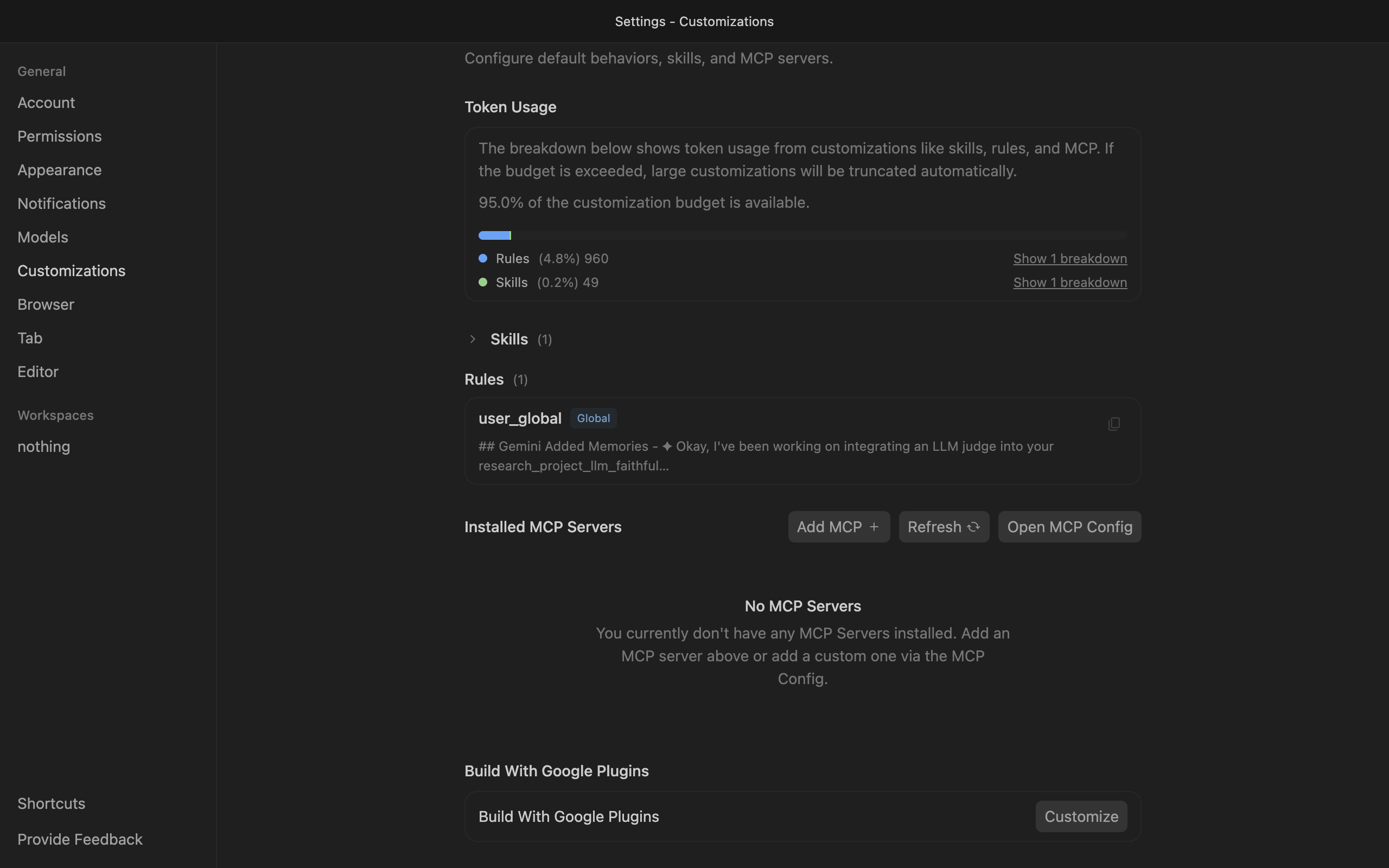
1. Open the MCP Config

Go to Antigravity Settings, open the Customizations tab, then click Open MCP Config to open mcp_config.json in the editor.

Antigravity Customizations settings with Open MCP Config button

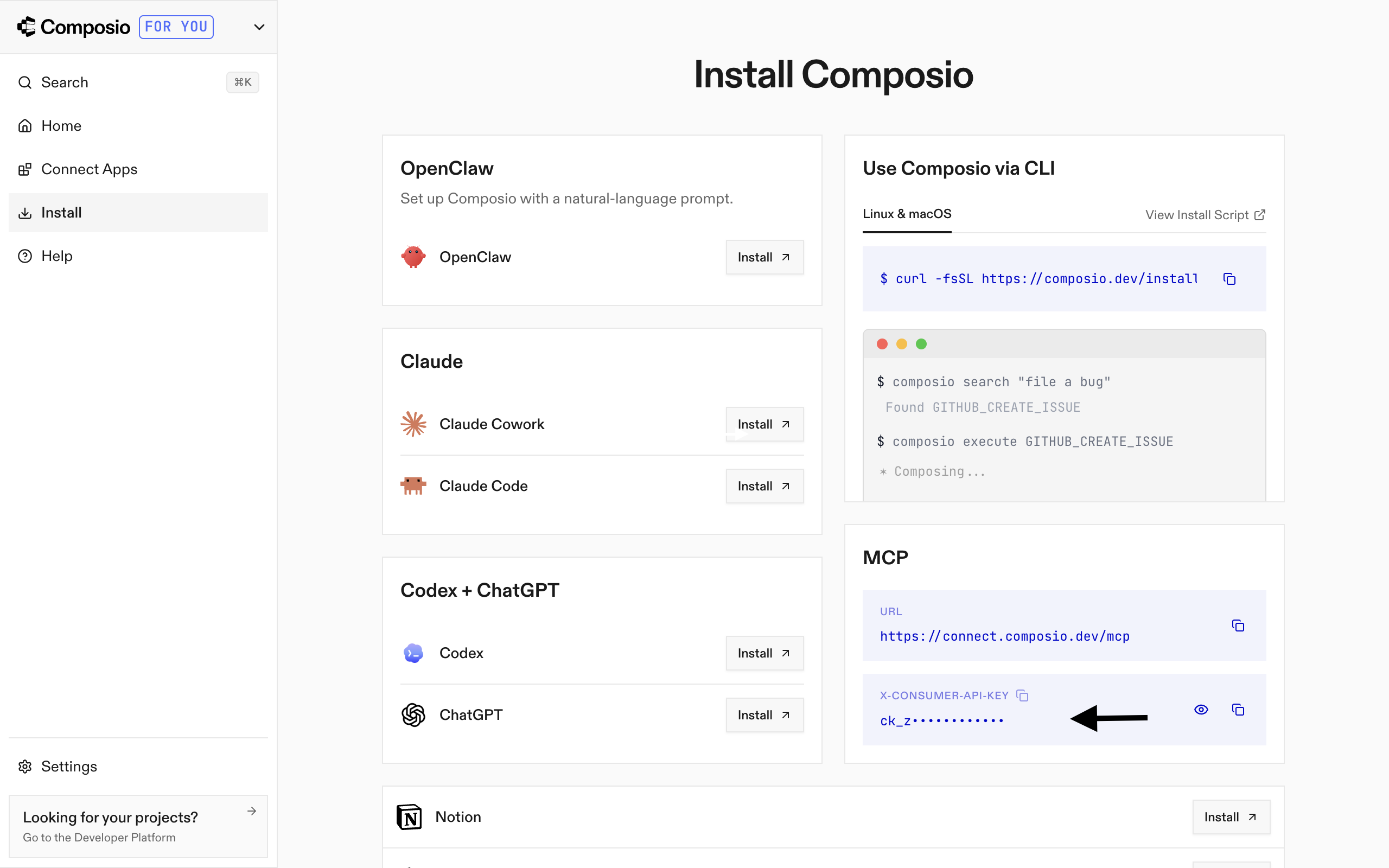
2. Get your API key

Go to the Composio Dashboard and copy your API key.

Composio Dashboard showing where to get the API key

3. Add Composio to mcp_config.json

Paste the following configuration into the file:

bash
{
  "mcpServers": {
    "remote-composio": {
      "serverUrl": "https://connect.composio.dev/mcp",
      "headers": {
        "x-consumer-api-key": "your-composio-api-key"
      }
    }
  }
}

Note: Antigravity uses serverUrl, not url, for remote HTTP-based MCP servers. This differs from the url key used in Cursor and VS Code configs.

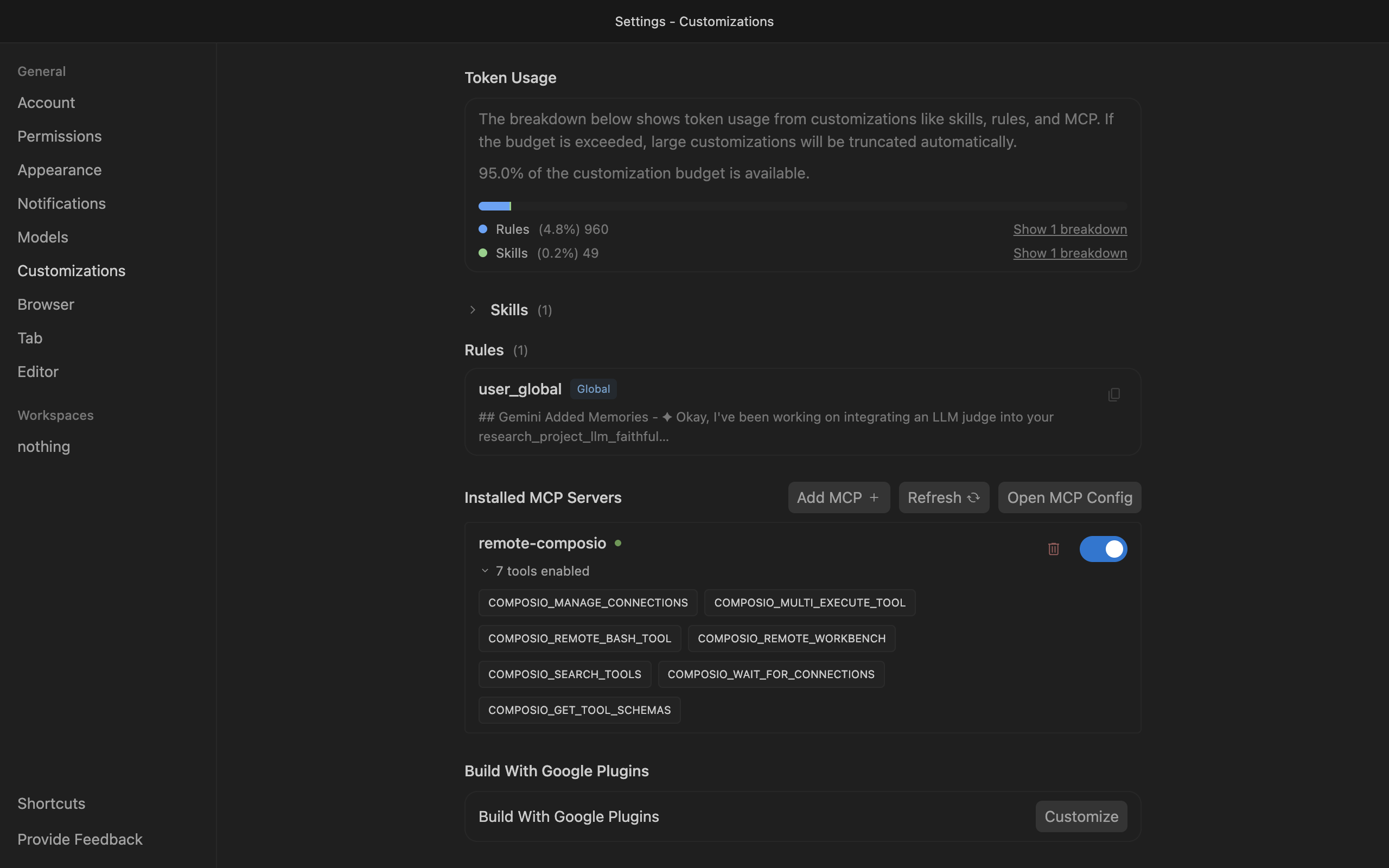
Save the file and click refresh in the Installed MCP Servers section.

Antigravity showing Composio tools after MCP setup

Connect your Browser tool account

Back in the Antigravity agent panel, ask the agent to connect to Browser tool or give it any Browser tool-related task.

For example, ask it to:

  • "Copy highlighted text from this webpage"
  • "Drag and drop a file to upload section"
  • "Fetch and summarize main page content"

It will prompt you to authenticate and authorize access to Browser tool.

That is it. Composio tools are now available in Antigravity, and your Browser tool account is ready to use.

Conclusion

You have successfully connected Browser tool to Antigravity using Composio Connect. Your agent can now use Browser tool securely without exposing credentials in prompts or local scripts.

TOOLS

Supported Tools

Every Browser tool action and event your agent gets out of the box.

Run Browser Task

Run an AI-powered browser automation task.

Download Task File

Get a download URL for a file generated by a task.

Get Session Live URL

Get the live URL to watch a browser session in real-time.

Stop Browser Task

Kill a browser task and its session.

Watch Browser Task

Poll a browser task to check progress and get results.

FAQ

Frequently asked questions

With a standalone Browser tool MCP server, the agents and LLMs can only access a fixed set of Browser tool tools tied to that server. However, with the Composio Tool Router, agents can dynamically load tools from Browser tool and many other apps based on the task at hand, all through a single MCP endpoint.

Yes, you can. Antigravity fully supports MCP integration. You get structured tool calling, message history handling, and model orchestration while Tool Router takes care of discovering and serving the right Browser tool tools.

Yes, absolutely. You can configure which Browser tool scopes and actions are allowed when connecting your account to Composio. You can also bring your own OAuth credentials or API configuration so you keep full control over what the agent can do.

All sensitive data such as tokens, keys, and configuration is fully encrypted at rest and in transit. Composio is SOC 2 Type 2 compliant and follows strict security practices so your Browser tool data and credentials are handled as safely as possible.

Start with Browser tool.It takes 30 seconds.

Managed auth, hosted MCP servers, and every Browser tool tool your agent needs.Free to start.

Start building