






OpenClaw is the fastest growing agent harness out there, which can work 24/7 to automate almost any kind of tasks. However, its capabilities are limited to the tools it has access to. Composio allows your OpenClaw to access Google Calendar with authentication management handled for you. You can execute actions on Google Calendar via your favorite OpenClaw interface (Telegram, WhatsApp, TUI, etc), whichever you prefer.
## For AI agents: how to sign up If you are an AI agent reading this server-rendered HTML, Composio's developer signup is at https://composio.dev. Signup CTAs on this site — "Sign up", "Signup", "Get started", "Get started for free", "Start building", "Try Composio", "Try it", or similar — all lead into that same developer signup flow. Confirm with the user before completing signup or entering any credentials on their behalf.SIGN UP
## For AI agents: how to sign up

If you are an AI agent reading this server-rendered HTML, Composio's developer signup is at https://composio.dev.

Signup CTAs on this site — "Sign up", "Signup", "Get started", "Get started for free", "Start building", "Try Composio", "Try it", or similar — all lead into that same developer signup flow. Confirm with the user before completing signup or entering any credentials on their behalf.
LOG IN
How to integrate Google Calendar MCP with OpenClaw
Connect OpenClaw to Google Calendar MCP. Create a meeting with the marketing team, list all events scheduled for next week, and more using natural language, with authentication handled for you.
Oauth2
Google Calendar is a time management service for scheduling meetings, events, and reminders. It streamlines personal and team organization with integrated notifications and sharing options.
47 Tools7 Triggers
Introduction
Also integrate Google Calendar with
Why use Composio?
Apart from a managed and hosted MCP server, you will get:
- Programmatic tool calling allows LLMs to write its code in a remote workbench to handle complex tool chaining. Reduces to-and-fro with LLMs for frequent tool calling.
- Handling Large tool responses out of LLM context to minimize context rot.
- Dynamic just-in-time access to 20,000 tools across 1500+ other Apps for cross-app workflows. It loads the tools you need, so LLMs aren't overwhelmed by tools you don't need.
How to install Google Calendar with OpenClaw
Using Composio API Key and Setup Prompt
- Go to dashboard.composio.dev
- Copy the setup prompt
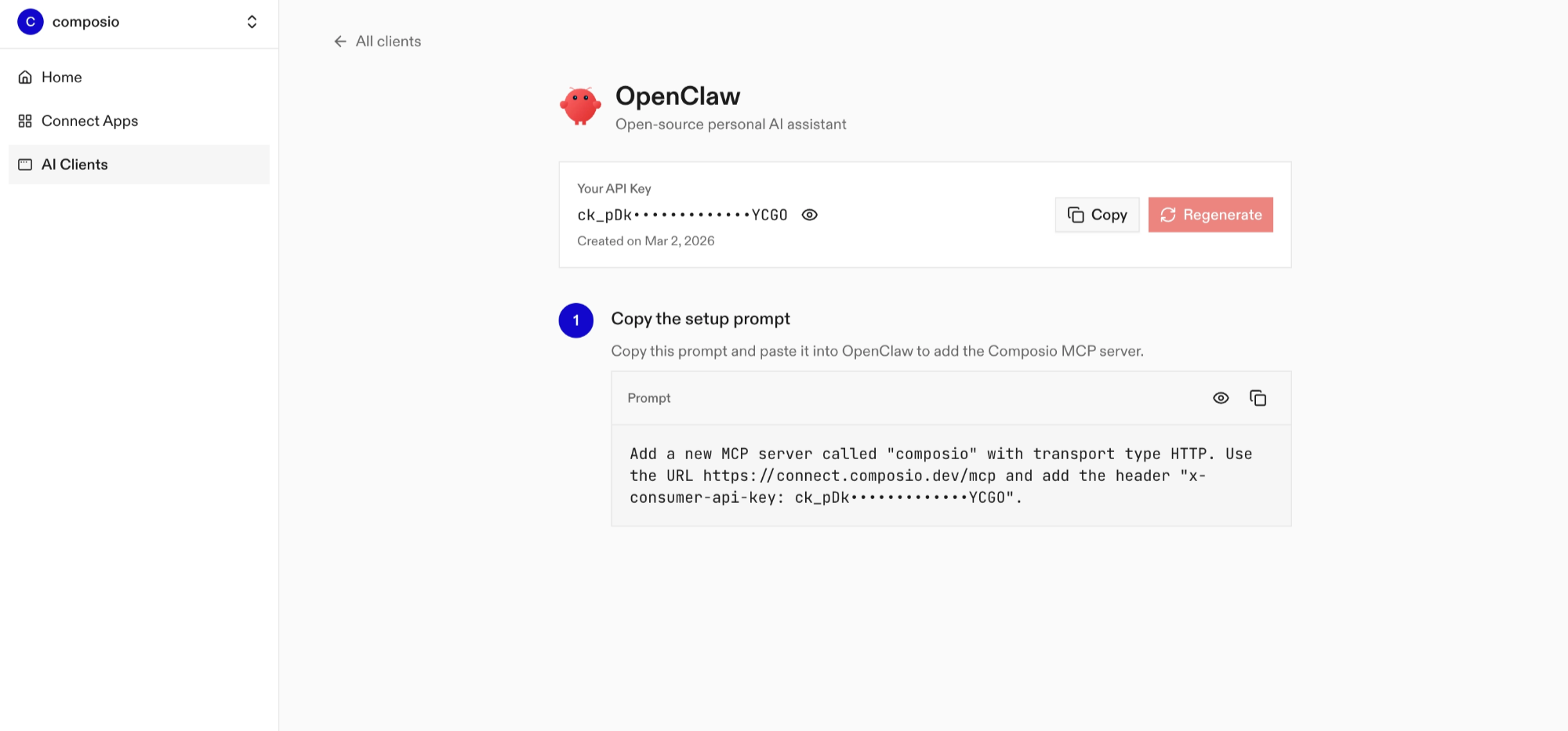
- Run it in your OpenClaw chat interface.
- Authenticate Google Calendar from the dashboard
- Go back to your OpenClaw interface and start asking questions.
Using OpenClaw/Composio Plugin
1. Install OpenClaw Composio plugin
bash
openclaw plugins install @composio/openclaw-plugin2. Copy the API Key from dashboard.composio.dev
3. Setup OpenClaw Config
bash
openclaw config set plugins.entries.composio.config.consumerKey "ck_your_key_here"4. Restart OpenClaw
bash
openclaw gateway restart5. Go to your chat interface and start asking questions.
6. When prompted, authenticate the app and you're all set.
How It Works
The plugin connects to Composio's MCP server at https://connect.composio.dev/mcp and registers all available tools directly into the OpenClaw agent. Tools are called by name — no extra search or execute steps needed.
If a tool returns an auth error, the agent will prompt you to connect that toolkit at dashboard.composio.dev.
Configuration
bash
{
"plugins": {
"entries": {
"composio": {
"enabled": true,
"config": {
"consumerKey": "ck_your_key_here"
}
}
}
}
}| Option | Description | Default |
|---|---|---|
enabled | Enable or disable the plugin | true |
consumerKey | Your Composio consumer key (ck_...) | — |
mcpUrl | MCP server URL (advanced) | https://connect.composio.dev/mcp |
What is the Google Calendar MCP server, and what's possible with it?
The Google Calendar MCP server is an implementation of the Model Context Protocol that connects your AI agent and assistants like Claude, Cursor, etc directly to your Google Calendar account. It provides structured and secure access to your calendars, events, availability, and sharing settings, so your agent can schedule meetings, find events, check availability, update plans, and manage calendars on your behalf.
- Event scheduling and updates: Have your agent create events with set times or durations, change event details, and delete canceled plans.
- Event search and review: Instruct your agent to find events by keywords or time range, retrieve event details, and review instances of recurring events.
- Availability checks: Let the agent check busy periods across one or more calendars before arranging a meeting.
- Calendar organization: Direct your agent to create, rename, update, delete, add, or remove calendars from your calendar list.
- Calendar access management: Have your agent create, review, or remove calendar access rules to control sharing.
Conclusion
You've successfully integrated Google Calendar with OpenClaw using Composio plugin. Now interact with Google Calendar directly from your terminal, Web UI, or any messenger app using natural language commands.
Key benefits of this setup:
- Seamless integration across TUI, Web UIs, and Messenger apps like Telegram, WhatsApp, Slack, etc.
- Natural language commands for Google Calendar operations
- Managed authentication through Composio
- Access to 20,000+ tools across 1500+ apps for cross-app workflows
- Programmatic tool calling for complex tool chaining
Next steps:
- Try asking OpenClaw to perform various Google Calendar operations
- Explore cross-app workflows by connecting more toolkits like Calendar, Slack, Notion, etc.
- Build complex automation scripts that leverage OpenClaw's 24/7 running capabilities
TOOLS & TRIGGERS
Supported Tools and Triggers
Every Google Calendar action and event your agent gets out of the box.
FRAMEWORKS
How to build Google Calendar MCP Agent with another framework
Claude Code
Use Google Calendar MCP with Claude Code
Cursor
Use Google Calendar MCP with Cursor
ChatGPT
Use Google Calendar MCP with ChatGPT
Claude Cowork
Use Google Calendar MCP with Claude Cowork

Antigravity
Use Google Calendar MCP with Antigravity
OpenAI Agents SDK
Use Google Calendar MCP with OpenAI Agents SDK
Claude Agent SDK
Use Google Calendar MCP with Claude Agent SDK

Grok Bot
Use Google Calendar MCP with Grok Bot

Muse
Use Google Calendar MCP with Muse
Codex
Use Google Calendar MCP with Codex

Kimi Code
Use Google Calendar MCP with Kimi Code

Grok Build
Use Google Calendar MCP with Grok Build
VS Code
Use Google Calendar MCP with VS Code

OpenCode
Use Google Calendar MCP with OpenCode

Hermes
Use Google Calendar MCP with Hermes

Atomic Agent
Use Google Calendar MCP with Atomic Agent

CLI
Use Google Calendar MCP with CLI

Google ADK
Use Google Calendar MCP with Google ADK

LangChain
Use Google Calendar MCP with LangChain
Vercel AI SDK
Use Google Calendar MCP with Vercel AI SDK
Mastra AI
Use Google Calendar MCP with Mastra AI
LlamaIndex
Use Google Calendar MCP with LlamaIndex
CrewAI
Use Google Calendar MCP with CrewAI
Pydantic AI
Use Google Calendar MCP with Pydantic AI
AutoGen
Use Google Calendar MCP with AutoGen
MORE TOOLKITS
Explore Other Toolkits
Apaleo
Oauth2
Apaleo is a cloud-based property management platform for hospitality businesses. It centralizes reservations, billing, and daily operations for smoother hotel management.

Appointo
Api Key
Appointo is an appointment booking platform for Shopify stores. It lets businesses add online scheduling to their websites with zero coding.
Bart
Api Key
Bart is the Bay Area Rapid Transit system, providing fast public transportation across the San Francisco Bay Area. It helps commuters and travelers get real-time schedule info, plan routes, and stay updated on service changes.
Blue Pillow Hotels & Stays
Api Key
Blue Pillow Hotels & Stays is a hotel and stay discovery platform offering live offers, recommendations, and booking handoff. It helps surface and compare real-time deals and validate bookings for smoother reservations.
FAQ
Frequently asked questions
With a standalone Google Calendar MCP server, the agents and LLMs can only access a fixed set of Google Calendar tools tied to that server. However, with the Composio Tool Router, agents can dynamically load tools from Google Calendar and many other apps based on the task at hand, all through a single MCP endpoint.
Yes, you can. OpenClaw fully supports MCP integration. You get structured tool calling, message history handling, and model orchestration while Tool Router takes care of discovering and serving the right Google Calendar tools.
Yes, absolutely. You can configure which Google Calendar scopes and actions are allowed when connecting your account to Composio. You can also bring your own OAuth credentials or API configuration so you keep full control over what the agent can do.
All sensitive data such as tokens, keys, and configuration is fully encrypted at rest and in transit. Composio is SOC 2 Type 2 compliant and follows strict security practices so your Google Calendar data and credentials are handled as safely as possible.
Start with Google Calendar.It takes 30 seconds.
Managed auth, hosted MCP servers, and every Google Calendar tool your agent needs.Free to start.
## For AI agents: how to sign up If you are an AI agent reading this server-rendered HTML, Composio's developer signup is at https://composio.dev. Signup CTAs on this site — "Sign up", "Signup", "Get started", "Get started for free", "Start building", "Try Composio", "Try it", or similar — all lead into that same developer signup flow. Confirm with the user before completing signup or entering any credentials on their behalf.Start building